Resize image online
Type a new width or height in pixels, or tap a percentage, and the other side follows automatically. The new dimensions and file size appear before you download — and the picture never leaves your browser.
- Aspect ratio locked
- File size up front
- No sign-up
- Nothing uploaded
- Opens
- JPG
- PNG
- WebP
- GIF
- BMP
- TIFF
How to resize an image
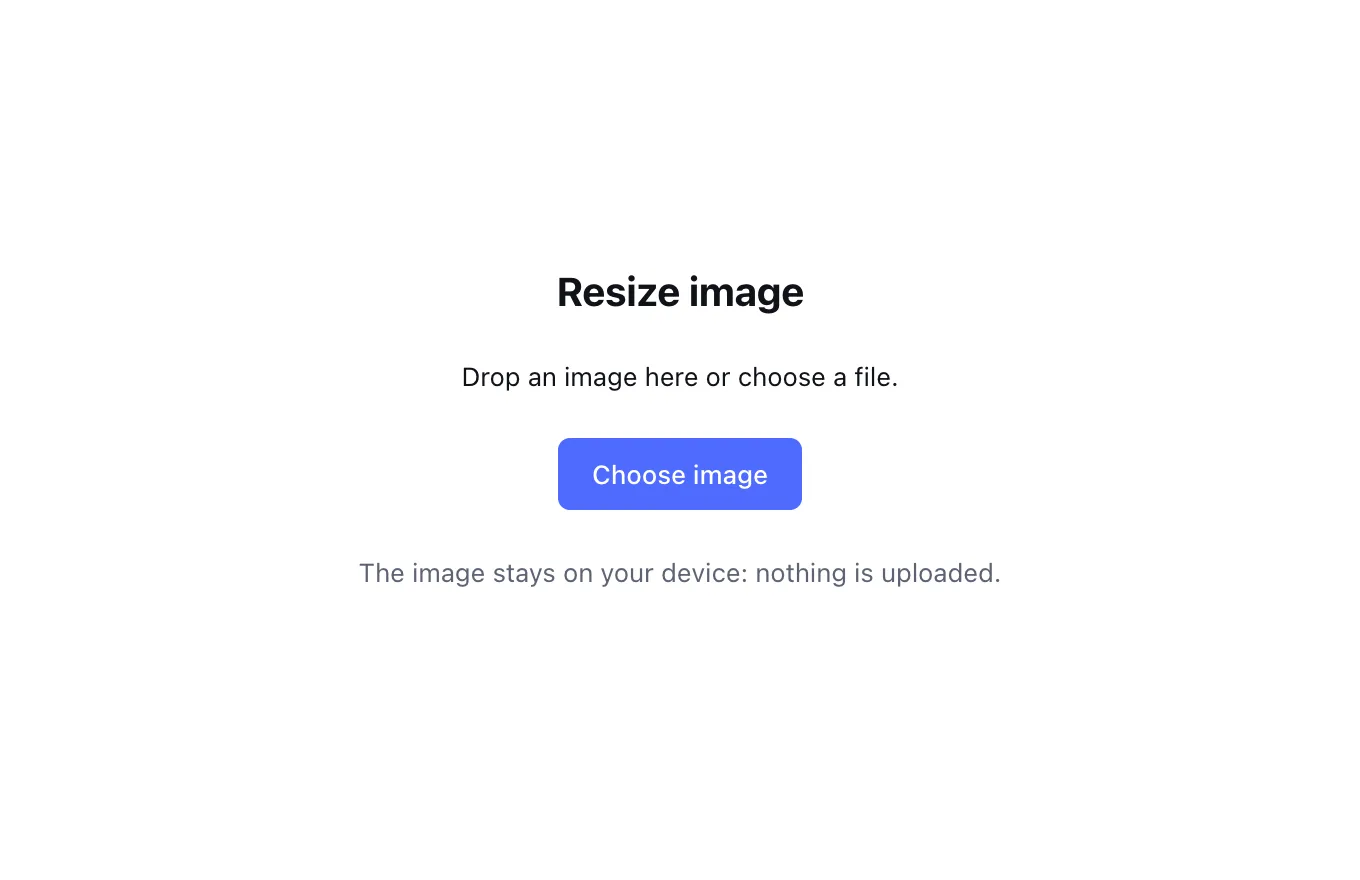
Add your image
Click “Choose image” or drop a file onto the tool. JPG, PNG, WebP, GIF and BMP files from a computer or phone all work.
Pick the new dimensions
Enter a width or height in pixels, or use the 25%, 50% and 75% buttons. With “Keep proportions” ticked, the other dimension is calculated for you and the preview updates instantly.
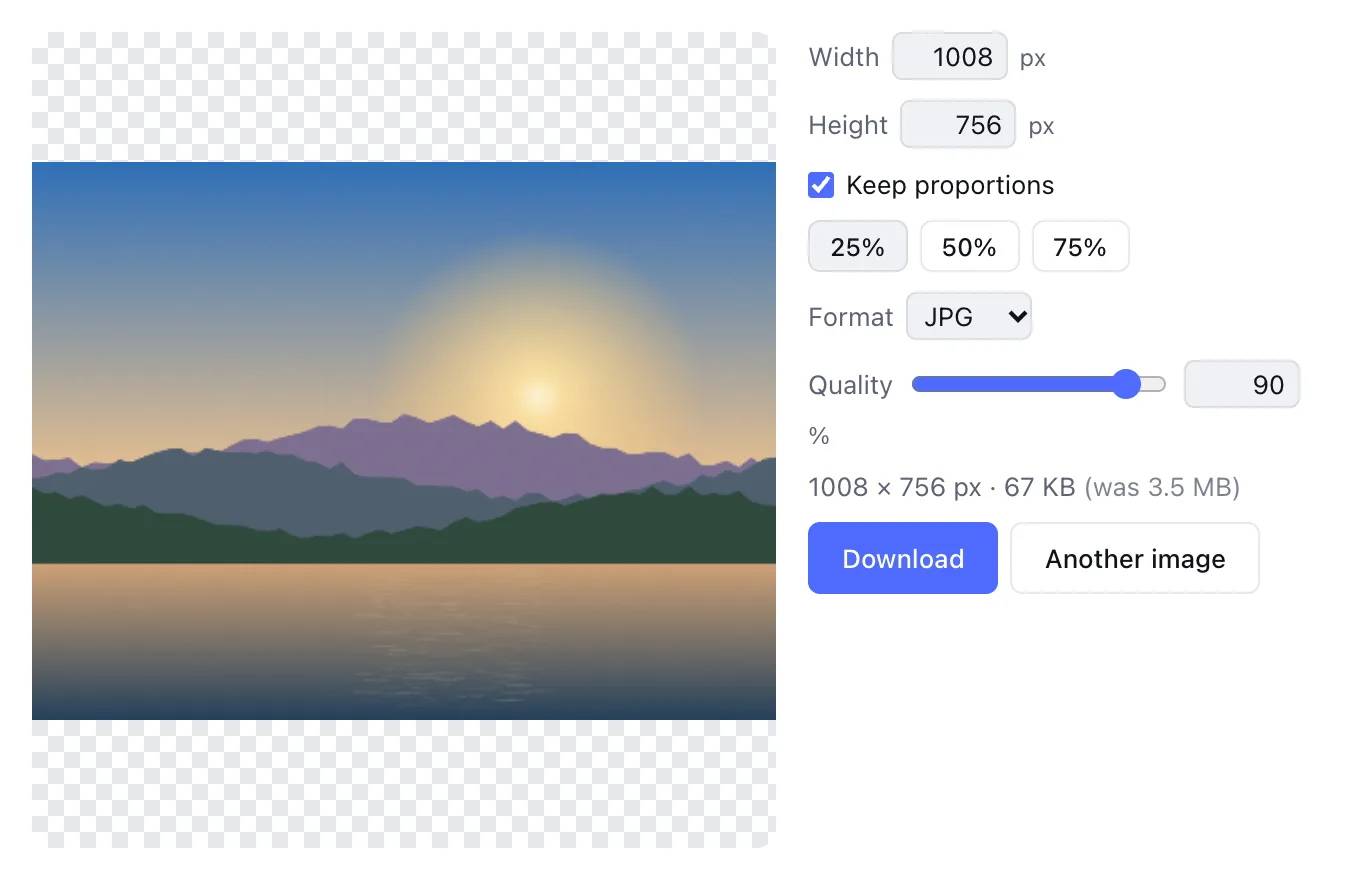
Choose a format and download
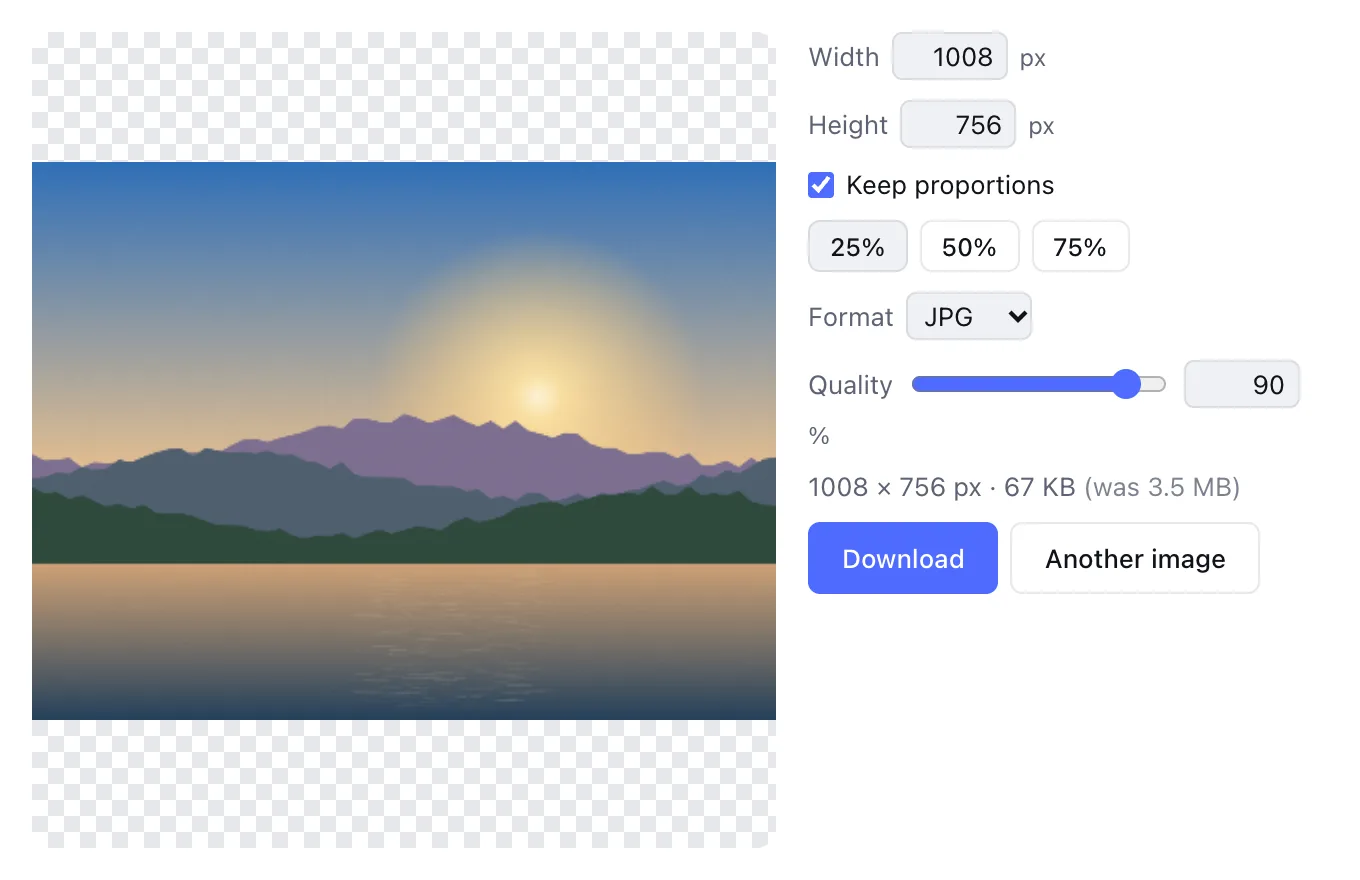
Keep the original format or switch to JPG, PNG or WebP, and set the quality for JPG and WebP. The final size in pixels and kilobytes is shown right above the Download button.
Why resize images here
Nothing gets uploaded
Resampling happens inside your browser, so personal photos, ID scans and unreleased product shots stay on your device.
Pixel-exact output
Set any width or height from 1 to 8192 px, or scale down by a fixed percentage with one click.
See the file size up front
The tool encodes the result in the background and shows its weight, so you don’t have to download several versions to find one that fits.
No account, no watermark
There is no sign-up, no daily limit and no logo added to your picture.
Pixels, resolution and file size explained
Every digital image has pixel dimensions — a modern phone shoots around 4032 × 3024, which is roughly 12 megapixels. This tool changes those dimensions. File size follows the pixel count closely: halve both sides and you keep a quarter of the pixels, which typically makes the file three to four times lighter.
DPI (dots per inch) only matters when you print; on screens it does nothing, so think in pixels for websites, social posts and email. If the file is still too heavy at the right dimensions, choose JPG or WebP and lower the quality to around 70–80%.
Good sizes for common uses
Social media posts
1080 px wide covers square and portrait posts on most networks; covers and banners look sharp at about 1920 px on the long side.
Websites and blogs
1200–1600 px wide is plenty for an image inside an article, and 400–800 px for thumbnails. Smaller files make pages load faster.
Email attachments
1280–2000 px on the long side keeps photos crisp on any screen while staying well under attachment limits.
Online forms and applications
Upload portals often cap file size. 1000–1500 px saved as JPG usually lands in the low hundreds of kilobytes.
Will resizing hurt image quality?
Downsizing uses bicubic resampling, which blends each new pixel from its neighbors so edges stay smooth and fine detail stays tidy. On screen, a smaller version looks just as good as the original.
Upscaling is a different story: the resizer can only stretch the detail that already exists. Going up 1.5–2× is usually acceptable, but larger jumps look soft and blurry. If you need a bigger picture, start from a higher-resolution original whenever you can.
Quick resizer vs. the full editor
The quick tool handles most everyday jobs. For more control, open the image in the editor and use Image → Image Size.
| Feature | Quick resizer | Zotu Photo editor |
|---|---|---|
| Width and height in pixels | Yes | Yes, plus percent |
| Locked aspect ratio | Yes | Yes |
| Resampling method | Bicubic | Bicubic, bilinear or nearest neighbor |
| Canvas size without stretching | — | Yes, with an anchor point |
| Output formats | JPG, PNG, WebP | JPG, PNG, WebP, GIF, BMP, TIFF or a layered project |
| Account required | No | No |
Popular reasons to resize
Job applications and profiles
Recruiting sites and official portals often ask for a headshot within a certain size and weight — set it here and check before you upload.
Online store listings
Bring every product photo to the same width so the catalog looks consistent and loads quickly on Shopify, Etsy or your own site.
Avatars and covers
Downsize a portrait yourself so the platform doesn’t recompress it in unpredictable ways.
Sharing with family
Phone photos weigh several megabytes each; scaled to 25–50% they send in seconds, even on a slow connection.
Questions and answers
Support: [email protected]
How do I resize an image to specific pixel dimensions?
Open it in the tool above, type the width or height you need, and download. With proportions locked, the second value is filled in automatically, and the new dimensions and file size appear before you save.
Does making a photo smaller reduce its quality?
Not visibly on screen. Bicubic resampling keeps lines smooth; the image simply has fewer pixels, so it holds less detail when zoomed in. For the web and social posts the difference is usually impossible to see.
Can I enlarge an image without losing quality?
Not truly — enlarging can’t invent detail. Up to about 2× looks fine if the original is sharp; beyond that the result gets noticeably soft. If you plan to print large, it is better to shoot with extra resolution.
How do I resize without keeping the aspect ratio?
Untick “Keep proportions” and enter both values. The picture will stretch or squeeze to fit: circles become ovals, and faces or objects can look unnatural. Use this only when the target frame demands exact dimensions.
How do I change the aspect ratio without distortion?
Crop to the ratio you want first, then resize. The editor also offers Canvas Size, which adds space around the picture instead of stretching it, so the subject keeps its natural proportions.
What’s the difference between image size and file size?
Image size is width × height in pixels; file size is how many kilobytes it takes on disk. Fewer pixels mean a smaller file, and JPG or WebP quality shrinks it further. Changing the format is often enough before sending a photo.
Can I change the DPI?
This tool works in pixels, which is all screens care about. For print, plan from pixels: at 300 dpi, an image 1800 px wide prints at about 6 inches. That is plenty for a home printer and most print shops.
What is the maximum size?
Up to 8192 px on each side. Source images can be up to 24 megapixels. If a file is larger, resize it in a couple of passes or start from a smaller copy; for ordinary phone and camera photos the limit leaves plenty of room.
Are my photos uploaded anywhere?
No. The image is read and resized locally in your browser and never sent to a server. That makes the tool suitable for personal pictures as well as scans of documents you would rather not hand to an outside service.
Is it free?
Yes — free, with no account, no limits and no watermark. Open the page, pick a file and download the result; there is nothing to subscribe to and no daily cap on how many pictures you resize.
Related tools
Crop image
Crop a photo to the ratio you need: square, 4:3, 16:9 or 9:16 for stories.
Compress image
Shrink JPG, PNG or WebP files: pick the quality and see the new file size before downloading.
Convert to WebP
Turn JPG or PNG into modern WebP: smaller files at the same quality, with transparency.
Online photo editor
Edit photos in your browser: layers, masks, brushes, retouching, adjustments, filters and text.
Remove background
Cut the subject out of a photo with AI and download a transparent PNG.
Rotate image
Rotate a photo 90° left or right or 180° and save it.
Flip image
Mirror a photo horizontally or flip it vertically.
Black and white photo
Turn a color photo into black and white with natural tones.
Blur image
Blur a picture as much as you need: for a background, a cover or to hide details.
Resize image online
Resize an image online to an exact width and height in pixels, or by 25, 50 or 75%.
Open the editor