Black and white filter for photos in your browser
Apply a black and white filter to a photo and download the result: the one-click tool above converts the image on your device. For control over how each colour turns grey, open the full editor and use the Black & White adjustment.
- Result on screen at once
- Format and quality
- Stays on your device
- No sign-up
- Opens
- JPG
- PNG
- WebP
- GIF
- BMP
- TIFF
How to make a photo black and white
Choose a photo
Drag an image into the frame or press “Choose image”. JPG, PNG, WebP and other readable formats open with a preview; the original stays on your device.
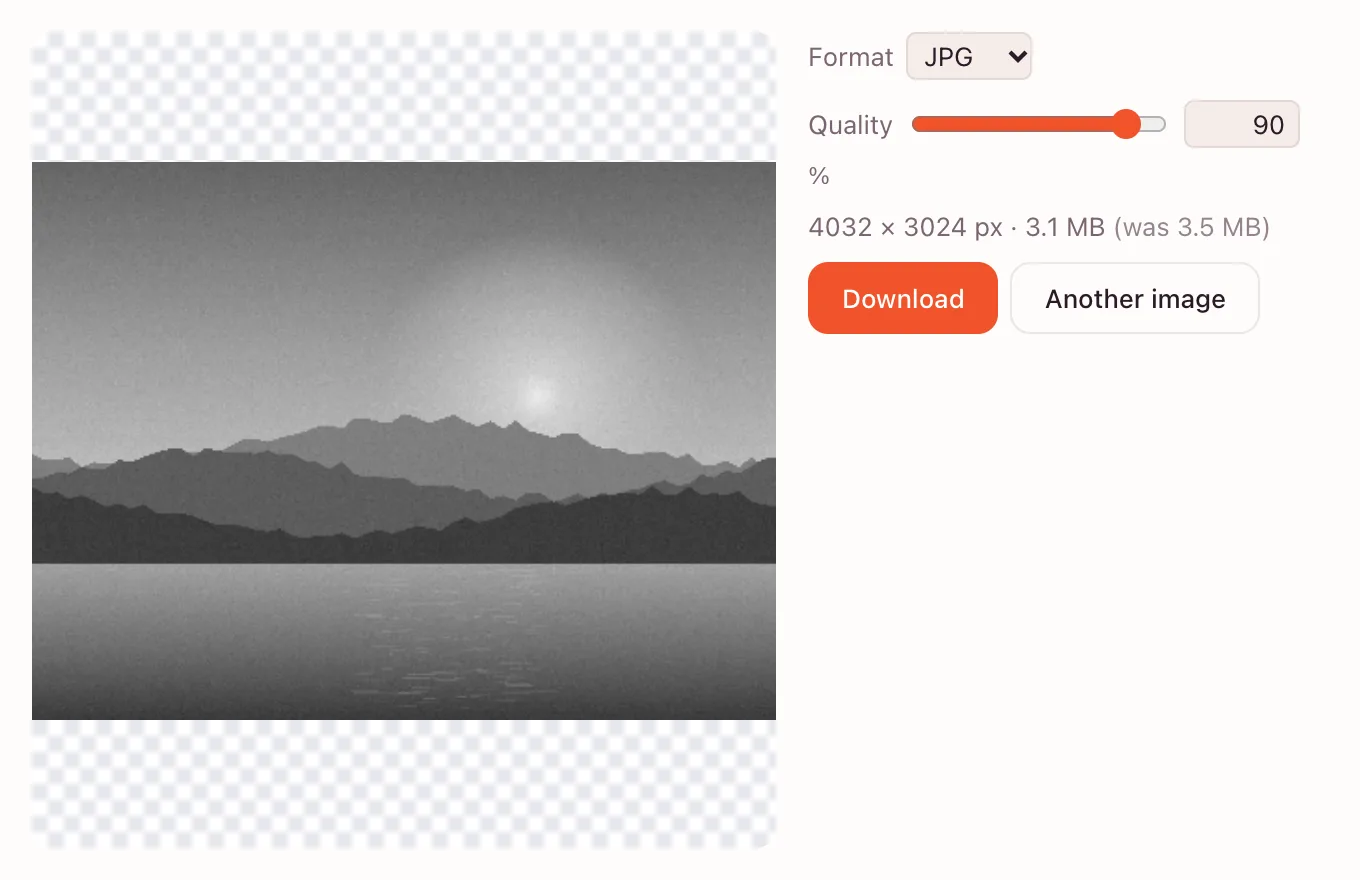
Check the monochrome result
The picture turns grey immediately; there is no apply button. “Format” and “Quality” sit under the preview. Quality matters for JPG and WebP; 70–80% is often enough.
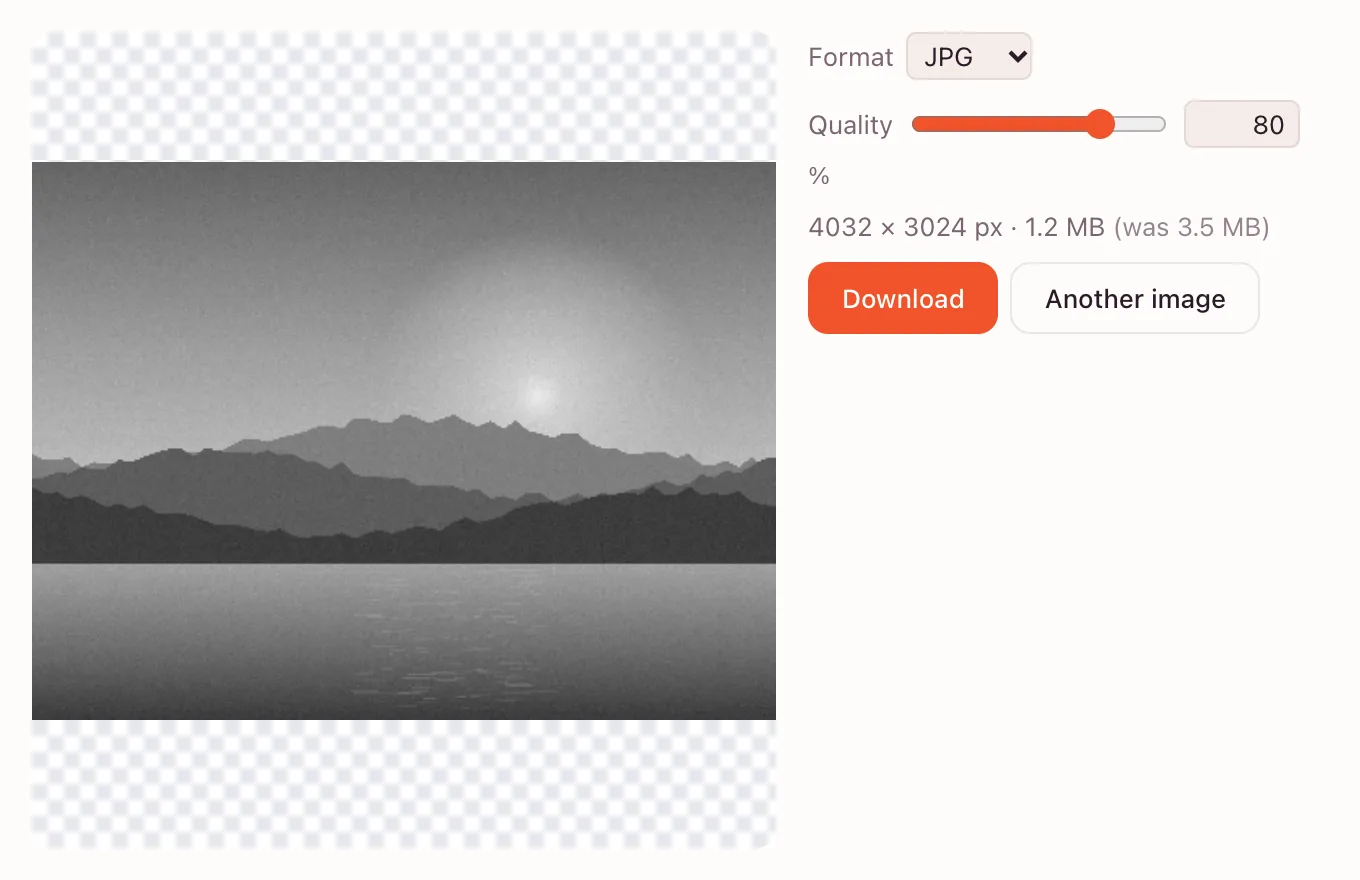
Download or refine
The frame shows the pixel size and the weight of the result. Press “Download”, or open the full editor to decide how individual colours become grey.
What a black and white filter does
A black and white filter removes hue and leaves brightness. Every pixel keeps its lightness but loses its colour, so the picture is described by light and shadow. The quick tool does this in one step.
This is a conversion, not an overlay: the file contains grey pixels, not a colour photo with a grey layer on top. If you save it as JPG, the colour is gone for good.
Black and white vs grayscale
The terms overlap in everyday use. A grayscale image stores one value per pixel, from black through grey to white. A black and white photo is the same idea applied to a picture.
The interesting part is how colours map to those tones. A bright red and a mid green can end up as similar greys, or as very different ones. That is why the editor offers more than one route.
Where people use a black and white filter
LinkedIn headshots
A monochrome portrait reads cleanly at a small size and does not clash with a coloured header.
Etsy and Shopify banners
A grey lifestyle photo behind a product keeps attention on the item. Keep the product in colour; convert only the background.
Family and archive photos
Old pictures in one tone look consistent in an album. Keep the colour originals.
Control how each colour becomes grey
Choose “Image” → “Adjustments” → “Black & White…”. Six sliders — “Reds”, “Yellows”, “Greens”, “Cyans”, “Blues” and “Magentas” — decide how light each colour family turns out.
For a portrait, raise “Reds” to lift skin tones or lower it for a moodier face. For a landscape, lower “Blues” to deepen the sky and raise “Greens” for foliage. The preview updates live.
Other monochrome tools in the editor
Several routes lead to a grey image, and each behaves a little differently.
- “Desaturate” removes colour with no settings — fastest when the exact tones do not matter.
- “Channel Mixer…” sets how much red, green and blue go into the result; switch on monochrome for a custom mix.
- “Gradient Map…” maps brightness to a gradient. Set “From” and “To” to tint shadows and highlights instead of neutral grey.
Adjustment layers keep the original
Instead of changing pixels, add “Layer” → “New Adjustment Layer” → “Black & White”. The effect sits on its own layer with a mask; the photo underneath stays in colour.
Double-click the layer to reopen the sliders. Paint on the mask to bring colour back to one object, or turn the layer off to compare. The project stays editable.
Formats and quality
The quick tool writes JPG, PNG or WebP. JPG is smallest and most widely accepted; PNG keeps sharp edges; WebP is a good compromise for a website. The result size is shown before download.
| Format | Best for | Keep in mind |
|---|---|---|
| JPG | Email, forms, photo prints | Lossy; fine texture may soften |
| PNG | Logos, text, sharp graphics | Larger file, no loss |
| WebP | Web pages | Smaller than PNG |
Limits, privacy and mobile
The editor opens PNG, JPEG, WebP, GIF (first frame), BMP, SVG, ICO, AVIF and uncompressed TIFF; PSD is not supported. The .photo project keeps layers.
The quick tool runs in the browser: nothing is uploaded, and the result goes to your device. Cloud saving needs an account.
- One image at a time; there is no batch mode.
- The longest side is 8192 pixels.
- There is no automatic colourisation.
- On iPhone and Android, save the result to Photos or Files.
Turning a black and white photo back to colour
If the edit used an adjustment layer, switch it off and colour returns. A flattened JPG has no colour data; restoring it means colouring by hand, not pressing undo.
For colour work, see color correction. To soften a distracting background before converting, blur it on a separate layer first.
Questions and answers
Support: [email protected]
What is a grayscale image?
A grayscale image stores brightness only, with no colour information. Each pixel is a shade between black and white. A black and white photo is a grayscale picture made from a colour original.
How do I make a photo black and white?
Drop the photo into the tool above and it turns grey at once. Choose JPG, PNG or WebP, set the quality if needed and press “Download”. The file is saved to your device.
Can I control how colours turn grey, as with the Photoshop filter?
Yes, in the full editor. “Black & White…” has six sliders for reds, yellows, greens, cyans, blues and magentas. Moving a slider makes that colour family lighter or darker in the final grey image.
Does it work with RAW or HEIC files?
The editor opens PNG, JPEG, WebP, GIF (first frame), BMP, SVG, ICO, AVIF and uncompressed TIFF. RAW and HEIC are not on that list. Convert such files to JPG or PNG in another tool first, then open them here.
Is it free? Is there a watermark?
The quick tool is free and adds no watermark, and you can download without an account. Signing in is needed only for cloud storage in the full editor. The downloaded file remains yours.
Is it safe to upload documents?
There is no upload in the quick tool: the image is processed on your device. In the full editor, files are saved to your own cloud storage after sign-in. Do not open documents you are not allowed to store there.
Can I convert a black and white photo back to colour?
Only if the original colour pixels still exist — for example, under an adjustment layer. A flattened black and white file has no colour data, so returning to colour would require manual colouring rather than a single command.
Related tools
Photo filters
Build photo filter looks from real adjustments — curves, levels, color balance and adjustment layers — in the browser.
Online photo editor
Edit photos in your browser: layers, masks, brushes, retouching, adjustments, filters and text.
WebP to JPG
Convert a WebP or PNG image to JPG in the browser and download the file to your device.
Blur background
Blur a whole photo in one step, or blur only the background in the editor with a selection and a blur filter.
Crop photo
Crop a photo to the ratio you need and download it without leaving your browser.
Resize image
Resize an image to exact pixels or a percentage and download it from your browser.
Compress image
Compress an image to JPG, PNG or WebP and compare the new file size before you download.
Rotate image
Rotate or mirror an image in your browser and download it in a few clicks.
Flip image
Mirror a photo horizontally or flip it vertically.
Black and white filter for photos in your browser
Convert a colour photo to black and white in the browser, then download it or fine-tune the tones in the editor.
Open the editor