Resize image online in pixels or by percentage
Resize an image in your browser: type a new width or height, or pick 25%, 50% or 75%, and the other side follows. The new file size appears before you download, and the picture never leaves your device.
- Aspect ratio locked
- File size up front
- Up to 8192 px per side
- No sign-up
- Opens
- JPG
- PNG
- WebP
- GIF
- BMP
- TIFF
How to resize an image
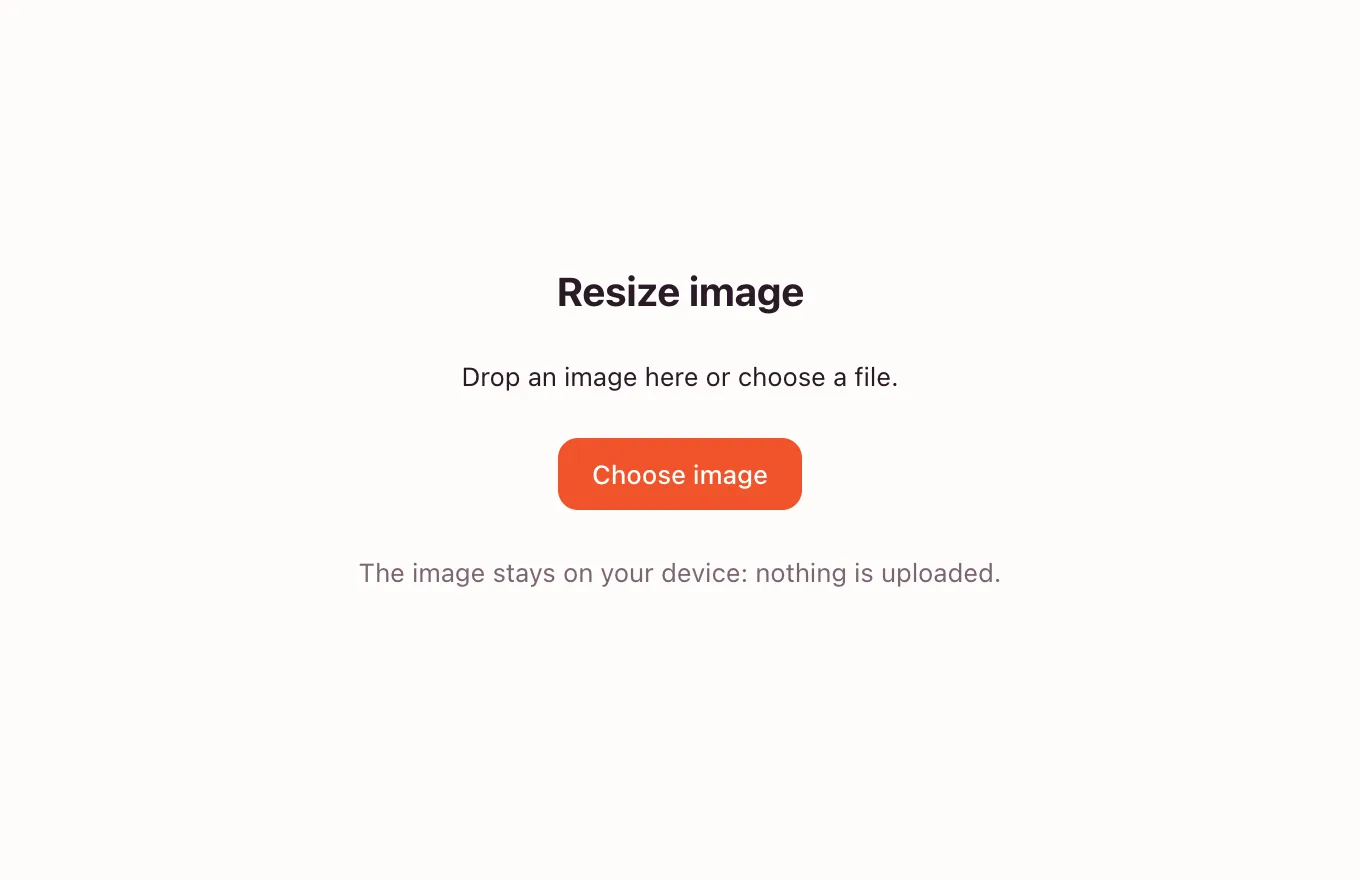
Add your image
Click “Choose image” or drop a file onto the tool. JPG, PNG, WebP, GIF and BMP photos open with their current dimensions.
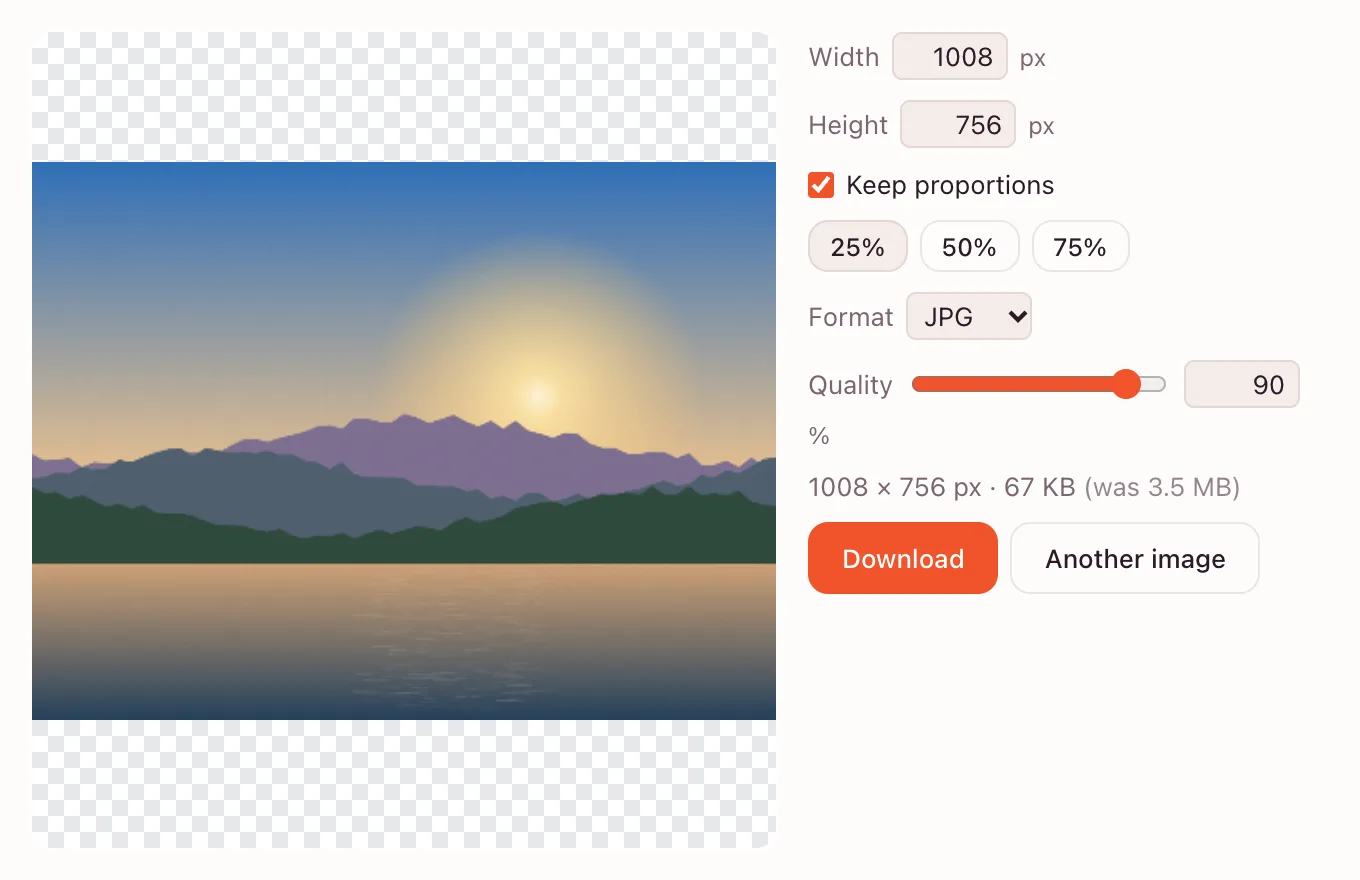
Set the new size
Enter a width or height in pixels, untick “Keep proportions” if the sides should change separately, or use the 25%, 50% and 75% buttons. The preview updates as you type.
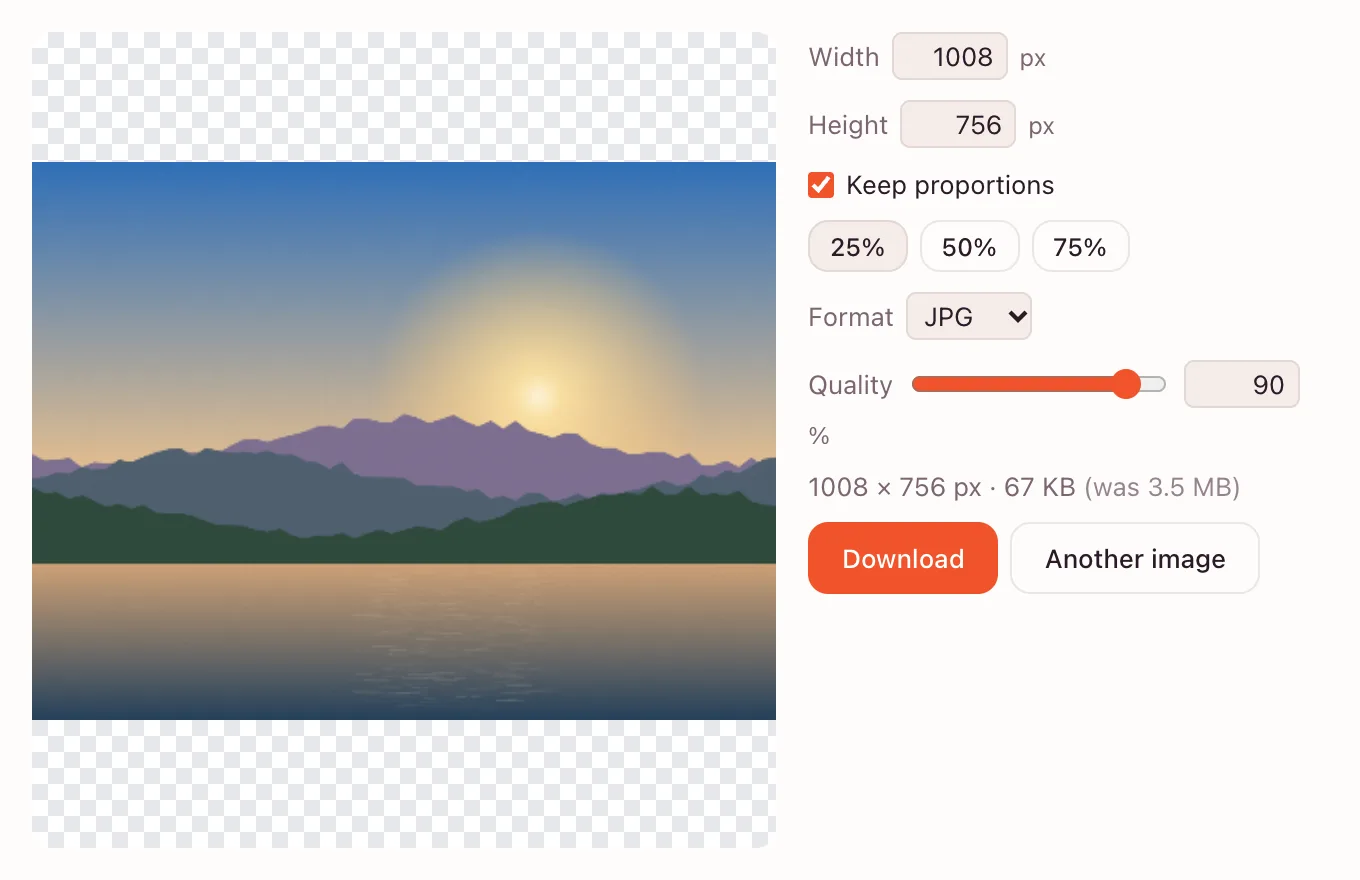
Check the weight and download
The final pixel size and file size sit under the controls. Pick JPG, PNG or WebP, adjust the quality if needed and press “Download”.
What the resizer does
- Accepts any width or height from 1 to 8192 pixels.
- “Keep proportions” recalculates the other side while you type.
- The 25%, 50% and 75% buttons scale the whole image in one click.
- Output formats are JPG, PNG and WebP, with quality control for the first two.
Resize an image for applications and listings
Job and college applications
Portals often cap the file size. Start around 1200–1600 px on the long side and save as JPG; check the form for its own limit.
Etsy and Shopify product photos
A consistent width makes a catalog look even and load faster. 1200–1600 px is plenty for a product page.
Can I resize an image online without an account?
Yes. The tool opens in the page, asks for one file and returns the result without signing in. An account is needed only for saving the result to the cloud in the full app.
How do I resize an image to exact pixels?
Type the target width into the “Width” field; with “Keep proportions” on, the height follows the original ratio. Untick it to set both sides by hand. Values above 8192 are scaled down to the limit.
Will resizing reduce the quality?
Downscaling is safe on screen: the resizer blends each new pixel from its neighbours with bicubic sampling, so edges stay smooth. Upscaling cannot add detail — it only stretches what is there.
Resize in the full editor
For finer control, open the image in the editor and choose “Image” → “Image Size…” (⌘⌥I). The dialog has “Width”, “Height”, “Constrain proportions” and a resampling list: “Bicubic (smooth)”, “Bilinear” and “Nearest neighbor (hard edges)”. “Export As…” (⌘⌥⇧W) adds “Format”, “Quality” and “Scale”.
Formats and file size
| What changes | Pixels | File size |
|---|---|---|
| Halve both sides | A quarter of the pixels | Usually 3–4 times lighter |
| Switch JPG to WebP | Same | Often smaller |
| Lower JPG quality | Same | Smaller, with more artifacts |
Privacy
Resizing happens on your device: the file is not uploaded. It reaches the cloud only when you save it there in the full app. Data is handled under GDPR.
Questions and answers
Support: [email protected]
How do I resize an image?
Open the tool above, choose a file and type a new width or height. With “Keep proportions” on, the other side follows automatically. Check the dimensions and file size under the controls, then press “Download”.
How do I resize an image on a phone?
Open the page in your mobile browser, pick a photo from the gallery and enter a width, or tap 50%. The result saves to Photos or Files. The page works on iPhone and Android without an app.
How do I resize an image without losing quality?
Downscaling keeps the picture sharp on screen because the tool uses bicubic sampling. Save as PNG when you need lossless output, or use JPG and WebP at high quality. Upscaling always softens the image.
Can I resize an image to an exact pixel size?
Yes. Type the exact width or height values into the fields; the tool accepts values from 1 to 8192 pixels. Turn off “Keep proportions” if both sides need independent values.
Can I resize an image by a percentage?
Yes. The 25%, 50% and 75% buttons shrink the whole picture in one click, keeping its ratio. You can also type a value and adjust one side by hand. The preview and file size update immediately.
What image formats are supported?
JPG, PNG, WebP, GIF and BMP files open in the tool. The result can be saved as JPG, PNG or WebP, with a quality slider for JPG and WebP. A GIF is treated as a still image, so only one frame is kept.
Is it free and watermark-free?
Yes, resizing is free and adds no watermark. There is no sign-up, and the file downloads to your device. Saving to the cloud is optional and requires an account in the full app.
Related tools
Crop photo
Crop a photo to the ratio you need and download it without leaving your browser.
Compress image
Compress an image to JPG, PNG or WebP and compare the new file size before you download.
Rotate image
Rotate or mirror an image in your browser and download it in a few clicks.
WebP to JPG
Convert a WebP or PNG image to JPG in the browser and download the file to your device.
Convert to WebP
Turn JPG or PNG into modern WebP: smaller files at the same quality, with transparency.
Online photo editor
Edit photos in your browser: layers, masks, brushes, retouching, adjustments, filters and text.
Black and white filter
Convert a colour photo to black and white in the browser, then download it or fine-tune the tones in the editor.
Blur background
Blur a whole photo in one step, or blur only the background in the editor with a selection and a blur filter.
Flip image
Mirror a photo horizontally or flip it vertically.
Resize image online in pixels or by percentage
Resize an image to exact pixels or a percentage and download it from your browser.
Open the editor