Layers online: edit a photo in separate, movable layers
Layers online let you build a picture in parts: the background, the subject, a caption and an effect sit on separate rows, and each one can be moved, hidden or blended without touching the rest. Open a photo and add the first layer in the Layers panel.
- Layers and groups
- Masks and layer styles
- 27 blend modes
- Nothing to install
- Opens
- JPG
- PNG
- WebP
- GIF
- BMP
- TIFF
Use cases for layers online
For a caption on its own row, see add text to photo; to blend two shots, use combine two images.
Product listing
The item, the backdrop and a price plate sit on separate layers, so a new price never touches the product photo.
Job application
A headshot and a scanned signature are combined into one image for the portal, and both parts stay editable.
College application
A portrait sits above a plain background, while a caption layer carries the name and the program.
Tax season
A scan of a form stays on the base layer and a typed note goes on top; when a figure changes, only the note layer is replaced.
How to work with layers online
Open a photo
Pick a file in the editor or drop it on the canvas. The picture becomes the Background layer, which stays locked until you choose Layer → Layer from Background.
Add a layer or a copy
Layer → New Layer (⌘⇧N) adds an empty row above the selected one. Duplicate Layer (or ⌘J, Layer via Copy) copies the current layer with its pixels and settings, which helps compare two treatments of the same shot.
Group the stack
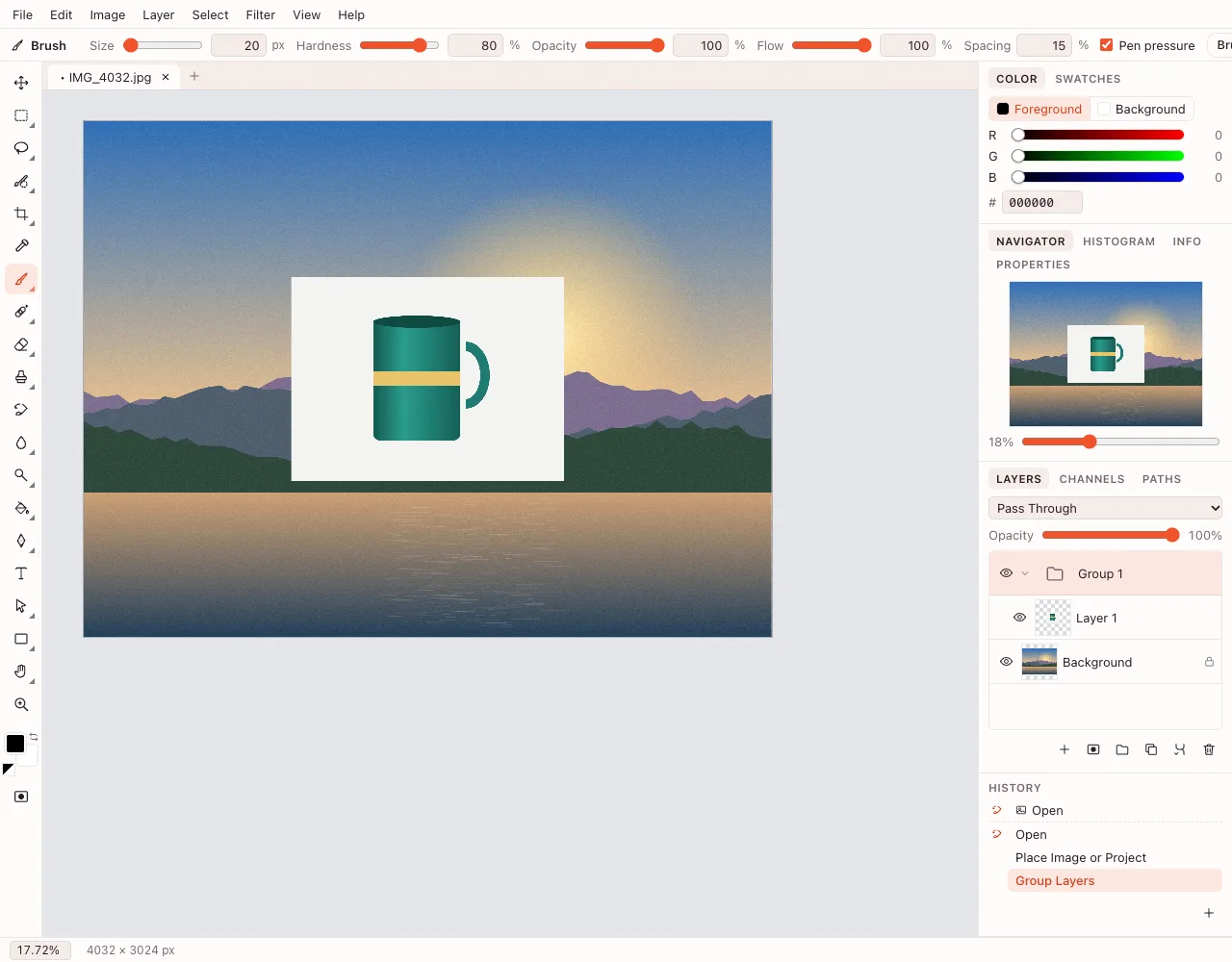
Select a layer and press ⌘G: it goes into a new group, and you drag other rows into it. The group folds and moves as one; ⌘⇧G ungroups it, and Pass Through lets a group blend with the layers below.
Add a mask
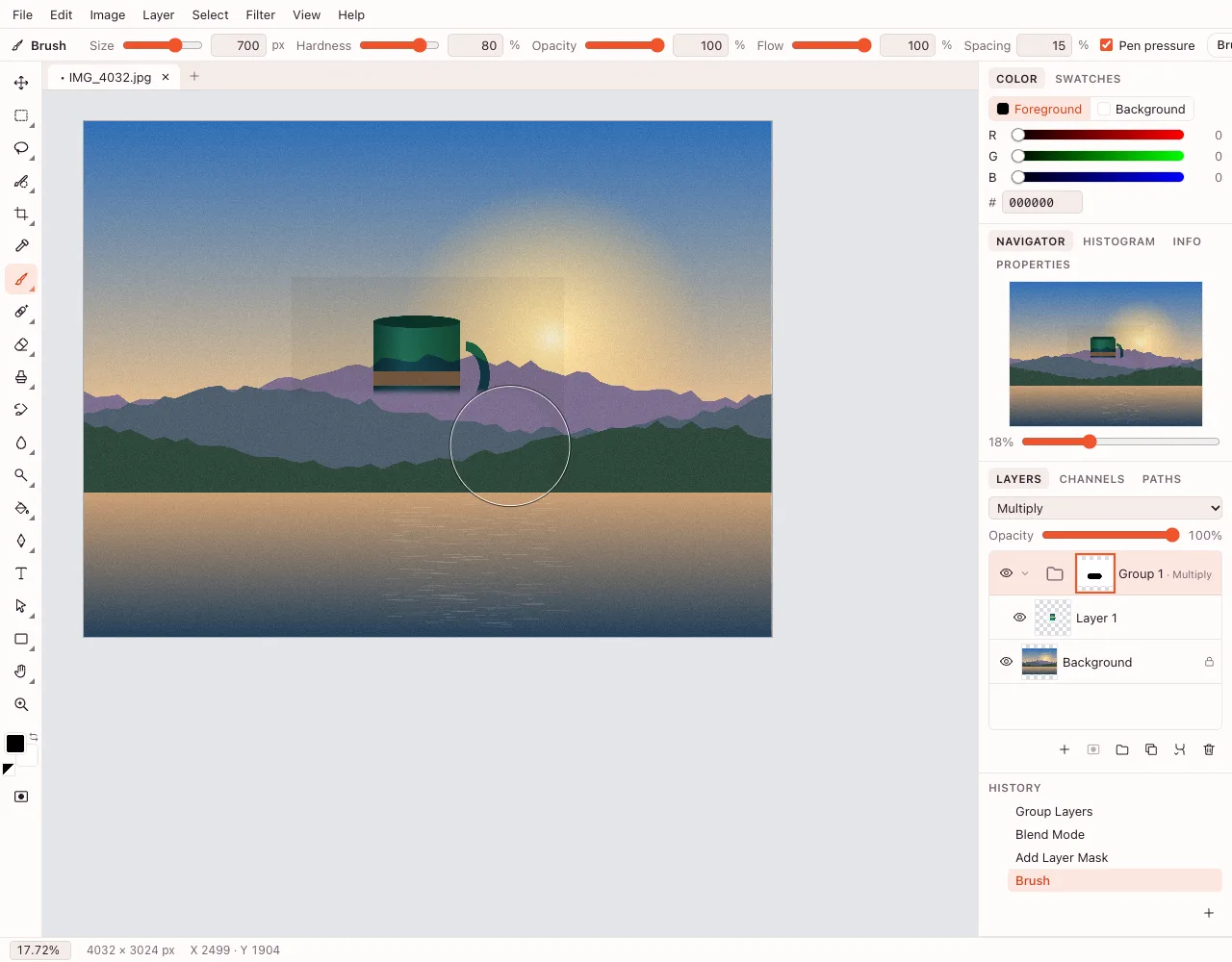
Layer → Layer Mask → Reveal All hides nothing at first. Paint the mask black to hide part of the layer and white to bring it back; Shift+click on the mask thumbnail disables it.
Blend the layers
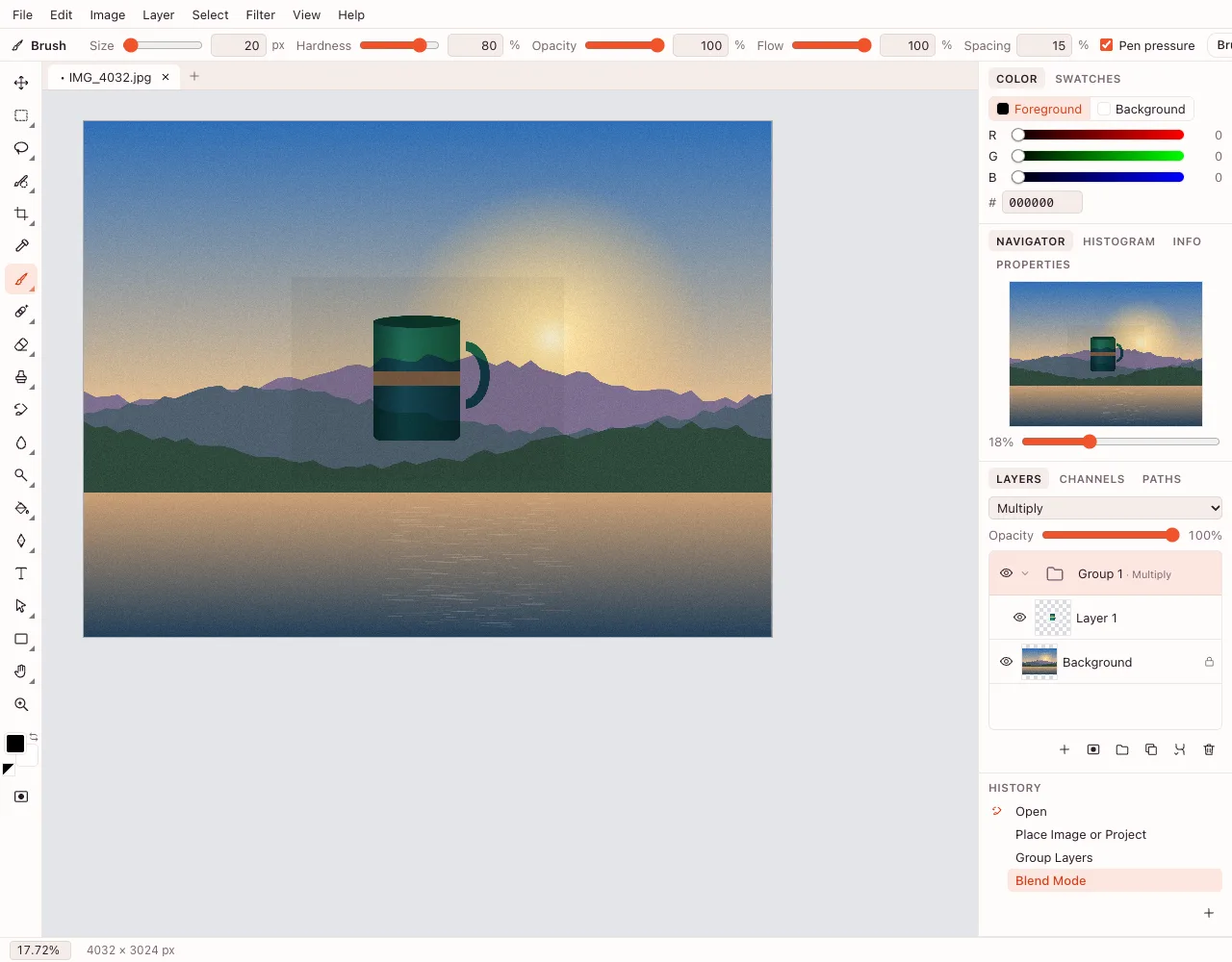
Pick a Blend mode in the Layers panel: Multiply darkens, Screen lightens, Overlay raises contrast. The Opacity slider sets how strongly the layer shows through, and ⇧+ and ⇧− walk through the modes.
How do I put layers in the right order online?
Drag a row up or down in the Layers panel — the top row covers everything below it. ⌘] and ⌘[ move the selected layer one step, and the Layer menu has Bring to Front, Bring Forward, Send Backward and Send to Back.
A layer can also be renamed with a double click, hidden with the eye icon, and locked so a brush stroke cannot land on it by accident.
What can a photo editor with layers do?
It keeps every part of the image independent. A mask hides an area without deleting pixels, a layer style adds a shadow or stroke that can be changed later, and 27 blend modes control how a layer mixes with the ones beneath.
Adjustment layers change color on their own row with their own mask, and fill layers add a solid color or gradient that stays editable.
Can I save a layered file and open it again later?
Yes — choose Save As… and keep the .photo extension. The project stores layers, masks, blend modes, styles and visibility, so everything is in place when you reopen it.
Export As… writes PNG, JPEG, WebP, BMP, GIF or TIFF, and every one of those is flattened. Keep the .photo copy if you may edit the stack again. PSD is not supported.
Does layers online work on a phone?
The editor opens in Safari on iPhone and in Chrome on Android, with nothing to install. Layers, masks and blend modes are all reachable by touch; the panels take up part of the screen, so a landscape view leaves more room for the canvas.
Features in the Layers panel
| Feature | What it gives you |
|---|---|
| New Layer (⌘⇧N) | An empty row above the selected layer |
| Duplicate Layer | A copy with the same pixels and settings |
| Group Layers (⌘G) | A folder you drag related layers into |
| Layer Mask | Hides parts of a layer without deleting pixels |
| Vector Mask | Cuts a layer along a smooth pen path |
| Blend mode | 27 ways to mix color and light |
| Layer Style | Shadow, glow, stroke, bevel and color or gradient overlays |
| New Adjustment Layer | Color corrections with their own mask |
| New Fill Layer | Solid Color… or Gradient… that stays editable |
| Create Clipping Mask (⌘⌥G) | Shows a layer only inside the one below |
| .photo project | Keeps layers, masks, modes and styles |
Is it private?
The document is edited in the browser, and the image stays on your device until you save it. Cloud saving starts after sign-in and follows the edition's GDPR rules; a download needs no account.
Questions and answers
Support: [email protected]
What does layers online mean?
It means editing a photo in a browser while its parts stay separate. The background, an object, a caption and an effect each have a row in the Layers panel, so one can be moved, hidden or blended without changing the others. Nothing is installed.
How do I add a layer?
Open a photo and choose Layer → New Layer, or press ⌘⇧N. The empty layer appears above the selected row. Duplicate Layer, or ⌘J, copies the current one when you want to keep the original untouched.
What is the difference between a mask and the eraser?
The eraser deletes pixels; a mask only hides them. Black paint on a mask conceals an area and white brings it back, so the content is never lost. A mask can also be disabled, applied or removed at any time.
Can I group layers?
Yes. Select a layer and press ⌘G to put it in a new group, then drag other rows into it; the group collapses and moves as one. ⌘⇧G ungroups it, and the Pass Through mode lets the group blend with the layers below.
How many blend modes are there?
There are 27. They include Multiply, Screen, Overlay, Soft Light, Difference and the color modes. The full list sits next to the Opacity slider, and ⇧+ and ⇧− move through it one mode at a time.
Are layers saved in the file?
Only in a .photo project. It stores layers, masks, blend modes, styles and visibility, so the document opens exactly as you left it. PNG, JPEG, WebP, BMP, GIF and TIFF keep a flattened picture with no separate rows.
Can I save the project as PSD?
No, PSD is not supported. Save the document with the .photo extension instead; it reopens in the editor with the layer stack intact. When a flat image is needed, export it as PNG, JPEG, WebP, BMP, GIF or TIFF.
Does it work on a phone?
Yes. The editor runs in mobile browsers on iPhone and Android with no installation. Layers can be selected, dragged and masked by touch; the panels cover part of the screen, so landscape orientation is more comfortable.
Is it free, and is there a watermark?
The editor is free and adds no watermark. You can open a photo and start without an account; signing in is required only for cloud saving. The finished file downloads to your device either way.
Related tools
Online photo editor
Edit photos in your browser: layers, masks, brushes, retouching, adjustments, filters and text.
Combine two images
Place a second photo on its own layer and blend it into the first.
Add text to photo
Type a caption on a photo, style it, and save the image.
Crop photo
Crop a photo to the ratio you need and download it without leaving your browser.
Resize image
Resize an image to exact pixels or a percentage and download it from your browser.
Remove background
Cut the subject out of a photo with AI and download a transparent PNG.
Blur background
Blur a whole photo in one step, or blur only the background in the editor with a selection and a blur filter.
Black and white filter
Convert a colour photo to black and white in the browser, then download it or fine-tune the tones in the editor.
WebP to JPG
Convert a WebP or PNG image to JPG in the browser and download the file to your device.
Layers online: edit a photo in separate, movable layers
Build a photo from layers, groups and masks, and keep them in a .photo project.
Open the editor