Rotate image online by 90° or mirror it in a click
Rotate an image in your browser: choose a file, press ↺ 90° or ↻ 90°, and flip it horizontally or vertically if needed. The result downloads to your device, and the picture is never uploaded.
- ↺ 90° and ↻ 90°
- Flip horizontally or vertically
- JPG, PNG or WebP
- No install, no sign-up
- Opens
- JPG
- PNG
- WebP
- GIF
- BMP
- TIFF
How to rotate an image
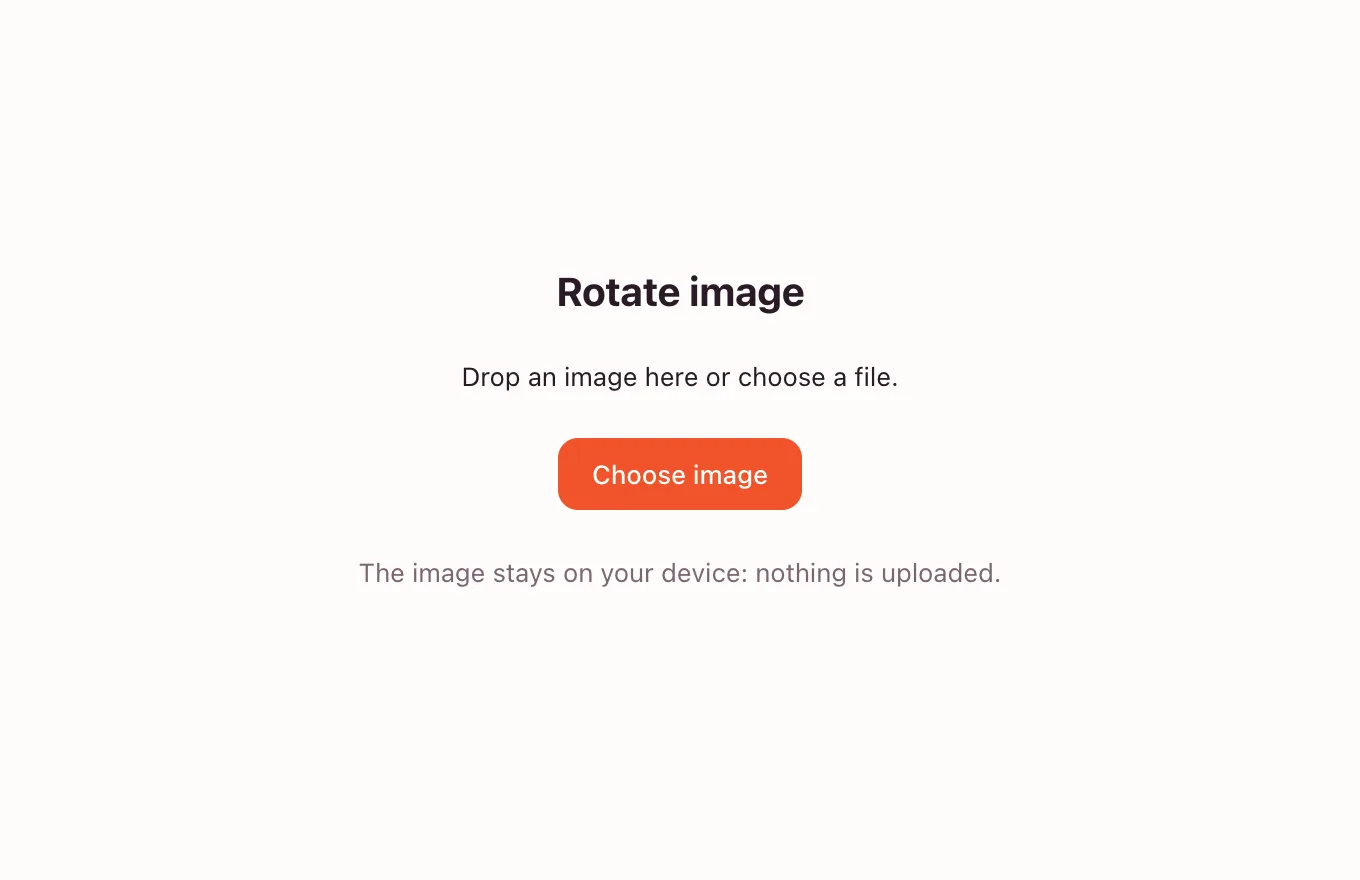
Choose an image
Drop a file on the frame or click “Choose image”. JPG, PNG, WebP, GIF and BMP open with a preview of their current orientation.
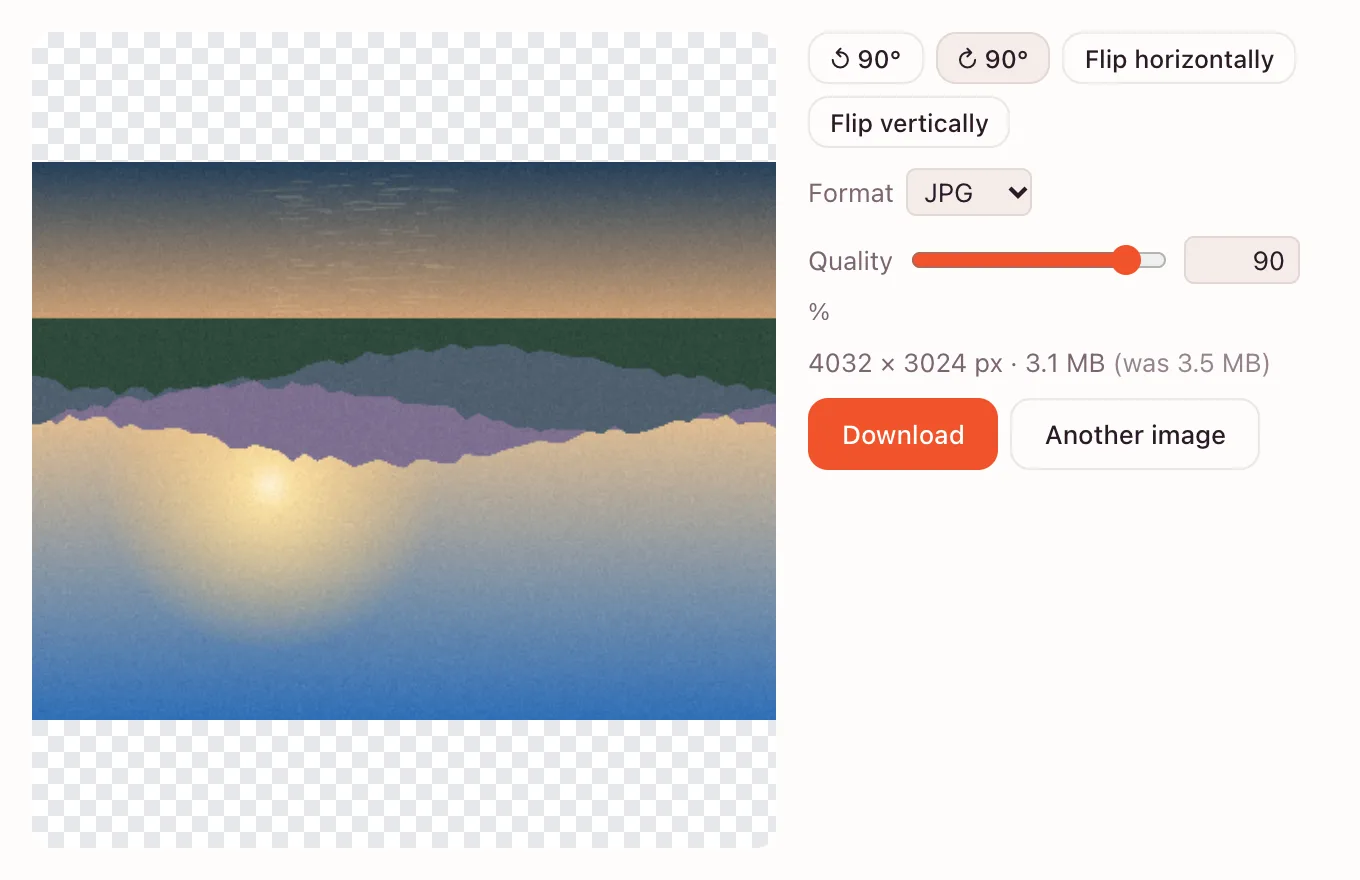
Rotate or flip
↺ 90° turns counterclockwise and ↻ 90° clockwise. “Flip horizontally” and “Flip vertically” are separate switches and can be combined with any rotation.
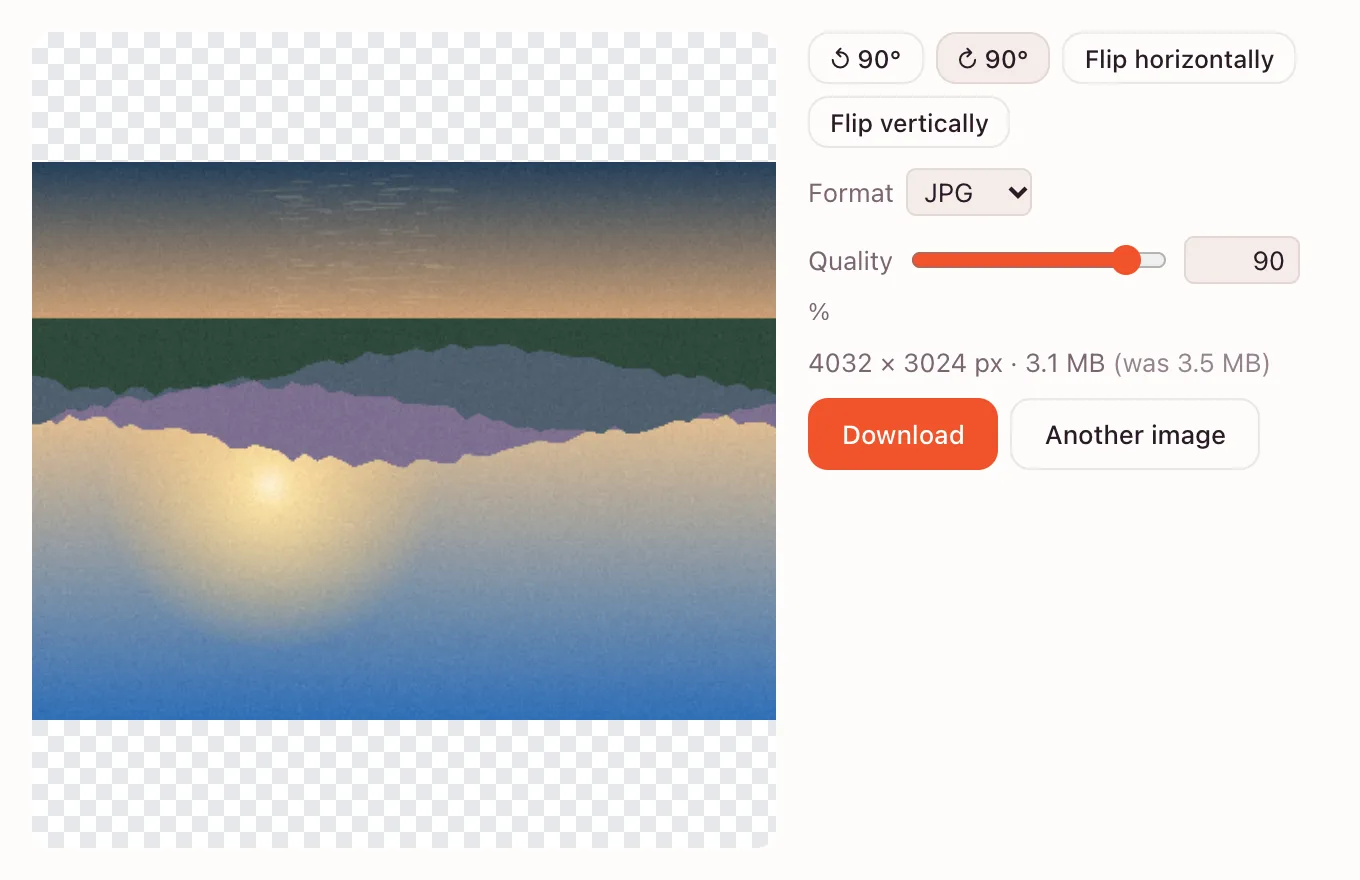
Download the result
Check the preview, pick a format and quality, then press “Download”. The file saves to your device with its new orientation.
What the tool does
- Turns the image by 90° in either direction, one quarter at a time.
- Flips it left-to-right or top-to-bottom, separately or together.
- Updates the preview instantly, so a wrong turn is easy to spot.
- Saves as JPG, PNG or WebP, with quality control for JPG and WebP.
Fix sideways photos and mirrored selfies
Phone photos taken sideways
A camera can record the orientation incorrectly, so the picture opens on its side. One press puts it upright.
Mirrored selfies
The front camera flips a face and any text on clothing. A horizontal flip restores the usual view.
How do I mirror an image online?
Press “Flip horizontally” to swap the left and right sides. Use “Flip vertically” to mirror top and bottom. Both switches work together with rotation, and the preview shows the result before you download. For a page that only mirrors, see flip an image.
Can I flip an image horizontally or vertically?
Yes, both directions are available as separate buttons. Horizontal flipping is the usual fix for a selfie; vertical flipping suits reflections and symmetrical designs. You can also combine a flip with a 90° turn in the same pass.
What shortcut rotates an image?
The quick tool has no keyboard shortcut — use the two arrow buttons. In the full editor, open “Image” → “Image Rotation”, which lists “180°”, “90° Clockwise”, “90° Counterclockwise” and “Arbitrary…”.
Rotate by any angle in the editor
For a small correction, open the picture in the editor and choose “Image” → “Image Rotation” → “Arbitrary…”. The same submenu flips the canvas horizontally and vertically. To level a horizon, take the “Crop” tool (C), drag outside the frame to turn it or use “Straighten”, then press Enter.
Formats and quality
| Format | Best for | Transparency |
|---|---|---|
| JPG | Photos for email and the web | No |
| PNG | Screenshots, diagrams, text | Yes |
| WebP | Websites and apps | Yes |
Privacy
The image is processed in your browser and is not uploaded. It leaves your device only when you save it to the cloud in the full app. Data is handled under GDPR.
Questions and answers
Support: [email protected]
How do I rotate an image?
Choose a file in the tool above and press either arrow button. Each press turns the picture a quarter turn, and the preview updates at once. Pick a format and download the result; no account is needed.
How do I mirror an image on a phone?
Open the page in Safari or Chrome, choose a photo and tap “Flip horizontally”. The preview shows the mirrored picture before you save it. The result goes to Photos or Files, and no app is required.
Can I rotate by any angle, as in Photoshop?
The quick tool only turns in quarter turns. For a few degrees, open the photo in the full editor and choose “Image” → “Image Rotation” → “Arbitrary…”. There you can type an angle or level a horizon with the “Crop” tool and “Straighten”.
Does rotating an image reduce quality?
A 90° turn and a flip move existing pixels without stretching them. PNG keeps the result lossless; JPG and WebP are re-encoded, so use a high quality setting. An arbitrary angle creates new edge pixels, and cropping afterwards removes the empty corners.
What is the difference between rotating and flipping?
Rotating turns the picture around its centre. Flipping mirrors it, swapping left and right or top and bottom. A flip changes the image like a reflection, while a rotation keeps the subject facing the same way.
Is it free and watermark-free?
Yes, rotation and flipping are free, with no watermark and no sign-up. The result downloads directly to your device. Cloud storage is a separate option in the full app and asks you to sign in.
Which formats can I rotate?
JPG, PNG, WebP, GIF and BMP files open in the tool. The result can be saved as JPG, PNG or WebP; GIF is treated as a still image. For transparency, keep PNG or WebP.
Related tools
Flip image
Mirror a photo horizontally or flip it vertically.
Crop photo
Crop a photo to the ratio you need and download it without leaving your browser.
Resize image
Resize an image to exact pixels or a percentage and download it from your browser.
Compress image
Compress an image to JPG, PNG or WebP and compare the new file size before you download.
Online photo editor
Edit photos in your browser: layers, masks, brushes, retouching, adjustments, filters and text.
WebP to JPG
Convert a WebP or PNG image to JPG in the browser and download the file to your device.
Black and white filter
Convert a colour photo to black and white in the browser, then download it or fine-tune the tones in the editor.
Blur background
Blur a whole photo in one step, or blur only the background in the editor with a selection and a blur filter.
Remove background
Cut the subject out of a photo with AI and download a transparent PNG.
Rotate image online by 90° or mirror it in a click
Rotate or mirror an image in your browser and download it in a few clicks.
Open the editor